
Book Access Tickets Online
AccessBook Access Tickets Online
If you wish to book access tickets online, there are a few things you need to do first.
- Create an online account or log in using an existing account.
- Once you're logged in, go to 'Other Preferences'
- Select which access needs are relevant to you, including 'Essential Companion' if you require one.
- Save at the bottom of the page.
Informing us of your access requirements helps our team to provide the best experience during your visit.
HOW TO BOOK
Essential Companion Tickets
Ensure you've indicated that you require an Essential Companion within your account preferences (refer to the instructions at the top of this page).
- Make sure you are logged into your account before beginning your booking.
- Find the time and date of the show you want to see, and select your seats on the map.
- Make sure one seat is Adult/Standard, and the other is Essential Companion. If booking on desktop, you'll find these options in the bottom right menu. Don't be alarmed that the Essential Companion seat is showing at full price, this will be discounted later.
- Once you reach the basket, the essential companion ticket will be discounted to £0.00
- Continue to the checkout and complete your booking.
If the discount has not applied, please do not continue with the booking - we are unable to provide refunds for any mistakes.
Please contact the Box Office who will be able to assist with any issues.
Wheelchair Accessible Seats
If you use a wheelchair and would like to book an accessible seat, you can do this online.
- Log into your account / create an account.
- Go to the person icon and then click 'Other Preferences'. From this list you need to select 'Wheelchair user, will remain in chair' or 'Wheelchair user, will transfer to a seat'.
- Find the show you would like to book and select your seats.
Wheelchair User - Staying in the Wheelchair
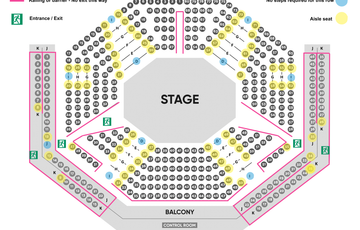
- On the seating plan you will now be able to see a wheelchair symbol with a star next to it.
- This shows which seats are suitable for us to remove in order for you to stay in your wheelchair during the show and the star is a seat reserved for your companion, friend or family member.
- The seat next to the wheelchair symbol will always look sold as this seat is taken off sale and removed to ensure there is enough room for any size wheelchair.
Wheelchair User - Transferring into the seat
- If you would like to transfer into one of our auditorium seats, the best seats will show as a T.
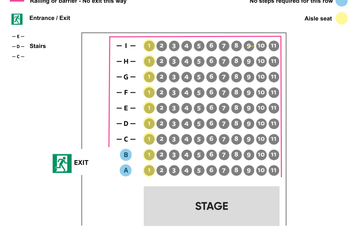
- As well as the 'T' seats, any seats on the front row would also be suitable or any on the back row on an aisle (next to the letter I).
4. Now you have selected your seats, continue to the end of the booking process. If you need to access our free companion ticket remember to change one of the tickets to 'Essential Companion'.
5. Once you have reached the checkout you will see ADDITIONAL DETAILS - Access, We may call you if your seat is unsuitable.
Please select your access requirement/s from the list. This list is checked daily by the Box Office Team so we can call you if we notice that the seat may not be suitable or there may be a better option for you.
BSL and Captioned Users
- Log into your account / create an account.
- Go to the person icon and then click 'Other Preferences'. From this list you need to select 'Captioned user' and/or 'British Sign Language user'.
- Find the show you would like to book. You can find our BSL and Captioned shows via WHATS ON then ACCESS. Then select your seats.
Captioned User
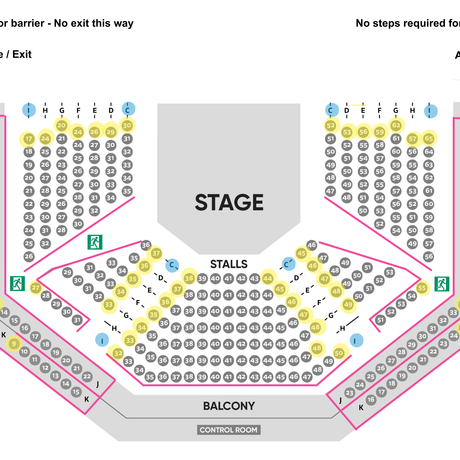
- When you have selected the Captioned show you will now be able to see a 'C' symbol.
- The C indicates the best seats to be able to see the caption screens which are located around the top of the stalls.
BSL User
- When you have selected the BSL performance, you will now be able to see a 'B' symbol.
- The B indicates the best seats to be able to see the signer.
Accessing both the Caption Boxes and the Signer
- You can select any of the B or C seats, as both are suitable for viewing the signer and the caption boxes.
4. Now you have selected your seats, continue to the end of the booking process. If you need to access our free companion ticket remember to change one of the tickets to 'Essential Companion'.
5. Once you have reached the checkout you will see ADDITIONAL DETAILS - Access, We may call you if your seat is unsuitable.
Please select your access requirement/s from the list. This list is checked daily by the Box Office Team so we can call you if we notice that the seat may not be suitable or there may be a better option for you.
Please note:
Other seats may also be suitable, if you can not see any C's or B's please contact the Box Office (01204 520661 - option 2) and they will be able to assist in finding the best seats for you!
Audio Description Users
- Log into your account / create an account.
- Go to the person icon and then click 'Other Preferences'. From this list you need to select 'Audio Described user'.
- Find the show you would like to book. You can find our Audio Described shows via WHATS ON then ACCESS.
- Then select your seats. - The best seats for the audio description will show with a star icon.
- Now you have selected your seats, continue to the end of the booking process. If you need to access our free companion ticket remember to change one of the tickets to 'Essential Companion'.
- Once you have reached the checkout you will see ADDITIONAL DETAILS - Access, We may call you if your seat is unsuitable.
Please select your access requirement/s from the list. This list is checked daily by the Box Office Team so we can call you if we notice that the seat may not be suitable or there may be a better option for you.
Please note:
Other seats may also be suitable, if you can not see any star icons please contact the Box Office (01204 520661 - option 2) and they will be able to assist in finding the best seats for you!
Essential Companion Tickets
Ensure you've indicated that you require an Essential Companion within your account preferences (refer to the instructions at the top of this page).
- Make sure you are logged into your account before beginning your booking.
- Find the time and date of the show you want to see, and select your seats on the map.
- Make sure one seat is Adult/Standard, and the other is Essential Companion. If booking on desktop, you'll find these options in the bottom right menu. Don't be alarmed that the Essential Companion seat is showing at full price, this will be discounted later.
- Once you reach the basket, the essential companion ticket will be discounted to £0.00
- Continue to the checkout and complete your booking.
If the discount has not applied, please do not continue with the booking - we are unable to provide refunds for any mistakes.
Please contact the Box Office who will be able to assist with any issues.
Wheelchair Accessible Seats
If you use a wheelchair and would like to book an accessible seat, you can do this online.
- Log into your account / create an account.
- Go to the person icon and then click 'Other Preferences'. From this list you need to select 'Wheelchair user, will remain in chair' or 'Wheelchair user, will transfer to a seat'.
- Find the show you would like to book and select your seats.
Wheelchair User - Staying in the Wheelchair
- On the seating plan you will now be able to see a wheelchair symbol with a star next to it.
- This shows which seats are suitable for us to remove in order for you to stay in your wheelchair during the show and the star is a seat reserved for your companion, friend or family member.
- The seat next to the wheelchair symbol will always look sold as this seat is taken off sale and removed to ensure there is enough room for any size wheelchair.
Wheelchair User - Transferring into the seat
- If you would like to transfer into one of our auditorium seats, the best seats will show as a T.
- As well as the 'T' seats, any seats on the front row would also be suitable or any on the back row on an aisle (next to the letter I).
4. Now you have selected your seats, continue to the end of the booking process. If you need to access our free companion ticket remember to change one of the tickets to 'Essential Companion'.
5. Once you have reached the checkout you will see ADDITIONAL DETAILS - Access, We may call you if your seat is unsuitable.
Please select your access requirement/s from the list. This list is checked daily by the Box Office Team so we can call you if we notice that the seat may not be suitable or there may be a better option for you.
BSL and Captioned Users
- Log into your account / create an account.
- Go to the person icon and then click 'Other Preferences'. From this list you need to select 'Captioned user' and/or 'British Sign Language user'.
- Find the show you would like to book. You can find our BSL and Captioned shows via WHATS ON then ACCESS. Then select your seats.
Captioned User
- When you have selected the Captioned show you will now be able to see a 'C' symbol.
- The C indicates the best seats to be able to see the caption screens which are located around the top of the stalls.
BSL User
- When you have selected the BSL performance, you will now be able to see a 'B' symbol.
- The B indicates the best seats to be able to see the signer.
Accessing both the Caption Boxes and the Signer
- You can select any of the B or C seats, as both are suitable for viewing the signer and the caption boxes.
4. Now you have selected your seats, continue to the end of the booking process. If you need to access our free companion ticket remember to change one of the tickets to 'Essential Companion'.
5. Once you have reached the checkout you will see ADDITIONAL DETAILS - Access, We may call you if your seat is unsuitable.
Please select your access requirement/s from the list. This list is checked daily by the Box Office Team so we can call you if we notice that the seat may not be suitable or there may be a better option for you.
Please note:
Other seats may also be suitable, if you can not see any C's or B's please contact the Box Office (01204 520661 - option 2) and they will be able to assist in finding the best seats for you!
Audio Description Users
- Log into your account / create an account.
- Go to the person icon and then click 'Other Preferences'. From this list you need to select 'Audio Described user'.
- Find the show you would like to book. You can find our Audio Described shows via WHATS ON then ACCESS.
- Then select your seats. - The best seats for the audio description will show with a star icon.
- Now you have selected your seats, continue to the end of the booking process. If you need to access our free companion ticket remember to change one of the tickets to 'Essential Companion'.
- Once you have reached the checkout you will see ADDITIONAL DETAILS - Access, We may call you if your seat is unsuitable.
Please select your access requirement/s from the list. This list is checked daily by the Box Office Team so we can call you if we notice that the seat may not be suitable or there may be a better option for you.
Please note:
Other seats may also be suitable, if you can not see any star icons please contact the Box Office (01204 520661 - option 2) and they will be able to assist in finding the best seats for you!